A clean, accurate Address Book means the right subcontractors turn up when you're building your invite lists, so you spend less time chasing details and more time getting quotes in.
This guide covers three ways to keep it healthy:
- Reviewing inactive contacts
- Archiving companies you no longer tender to
- Merging duplicate entries
Contact review
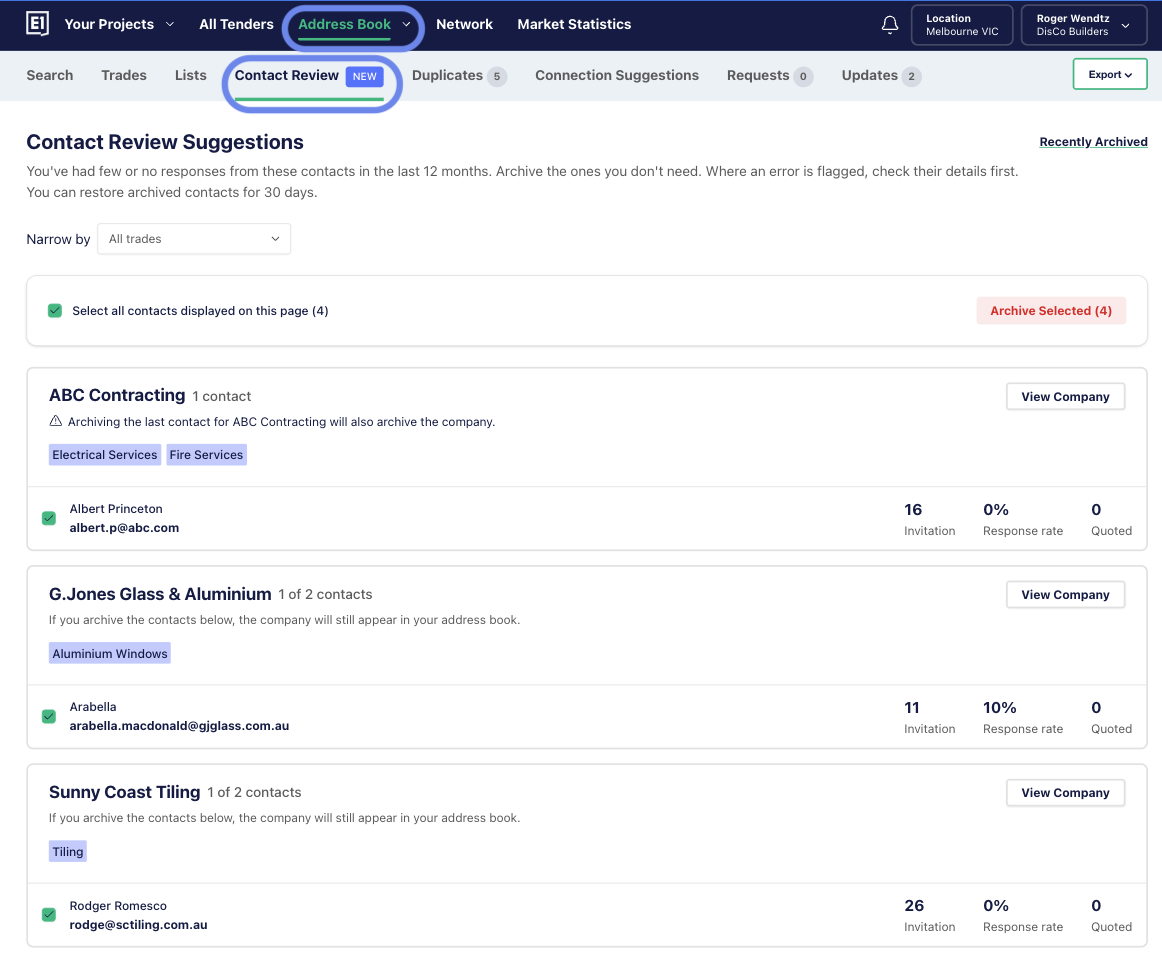
The Contact Review tab shows contacts who haven't responded to an invitation in the last 12 months. We recommend you either archive these contacts, or review their details to make sure they're correct and complete.
Unresponsive contacts can crowd your invitation lists. Archive the ones you don't need, or get the details right on the ones you want to keep. To update a contact, click View Company to see all available contacts and edit as needed.
Each contact's engagement stats sit on the right. These show how often they responded to your invitations over the last 12 months.
You can also focus your contact review by trade using the ‘Narrow by’ drop down menu.
Good to know:
- If every contact from a company appears in Contact Review, archiving all of them will also archive the company.
- Archived contacts move to the Recently Archived page, where they stay for 30 days before they're deleted.
- You can Unarchive a contact from the Recently Archived page any time within those 30 days.

Archiving and unarchiving companies
Archiving keeps your Address Book focused on the companies you actually tender to.
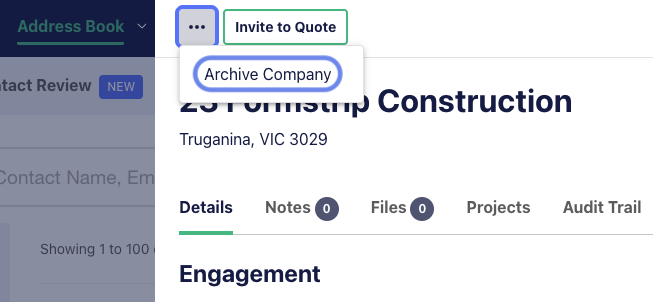
To archive a company, click their listing in your Address Book and select the Archive Company link in the top left corner. This archives the company and prevents your team from sending new tenders to them.
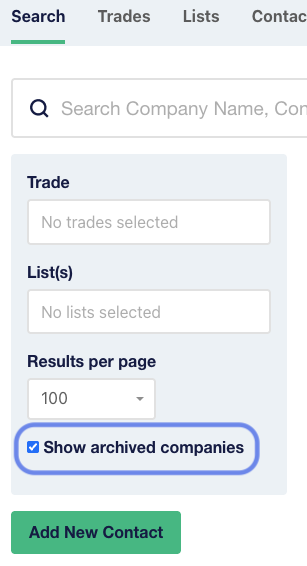
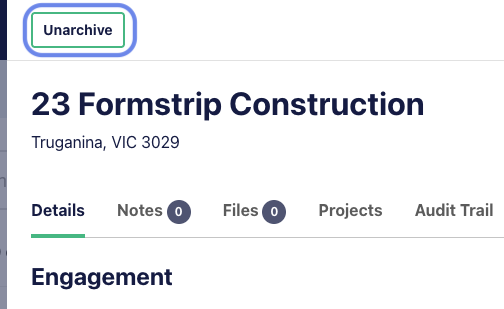
To find a previously archived company, select Show archived companies in your Address Book search. This lets you view archived entries and unarchive them if needed. Click the archived company you'd like to restore, then click the Unarchive button in the top left corner.
Merging duplicate companies
Duplicates split a subbie's history across multiple records. Merging brings it back together so you keep the full picture.
E1 helps you maintain a clean database by auto-suggesting merges for companies we detect as duplicates, based on company name, phone number, and email domain. You can merge them with one click and keep all their data.
To get started, head to your Address Book and select Duplicates from the menu below. Here you'll see all the suggested duplicate companies.
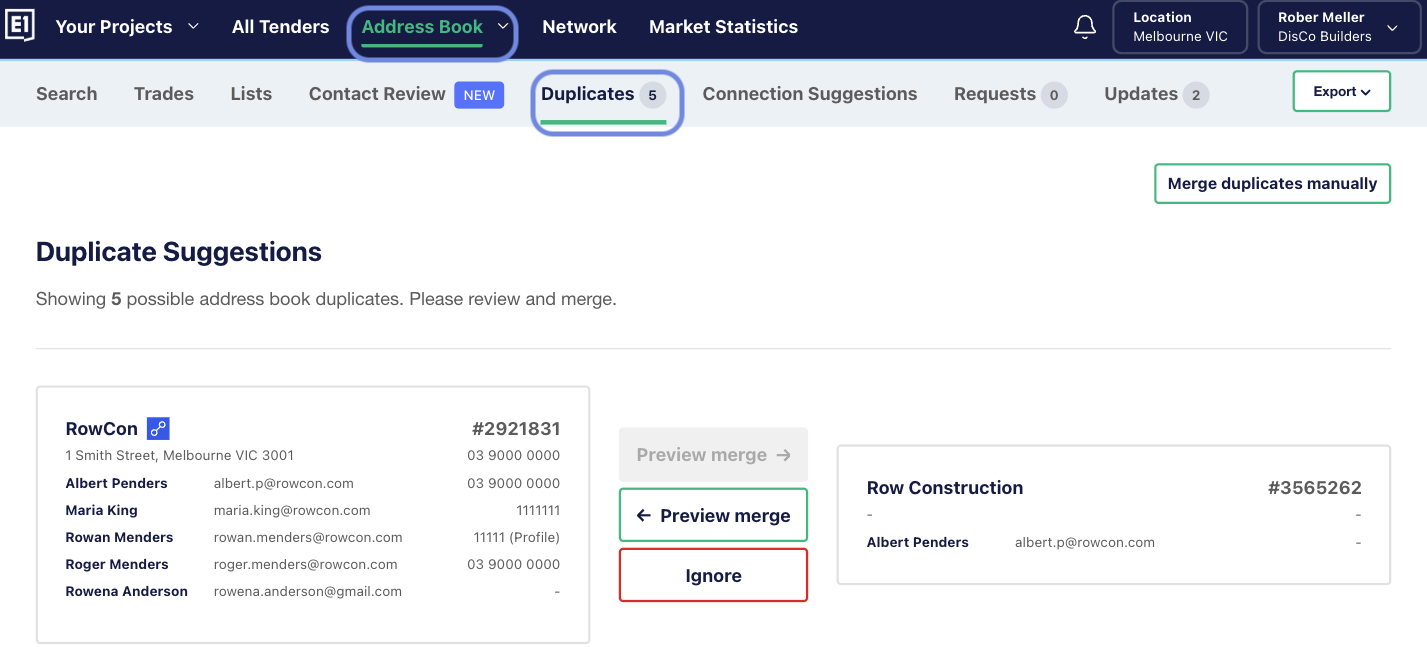
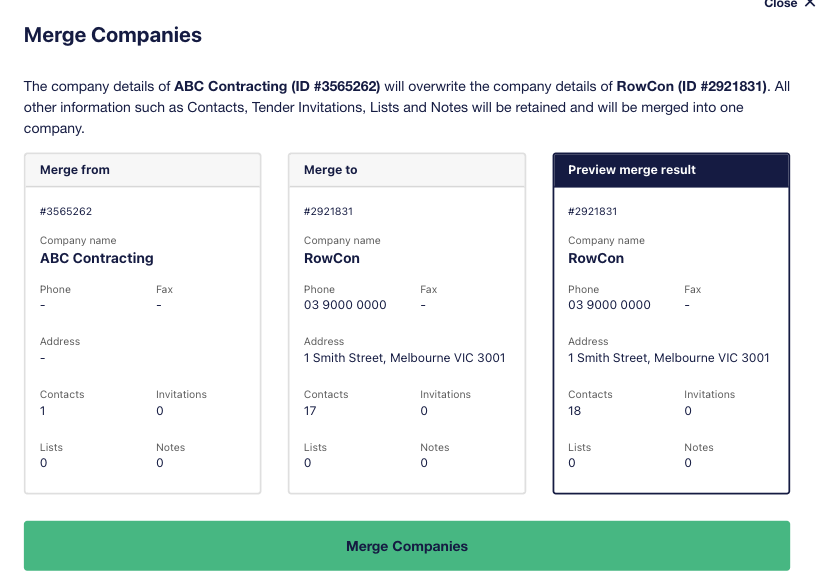
Select Preview merge with the relevant arrow to merge one company into another. Selecting Ignore removes the recommendation from the list. In the Merge Companies pop-up, you'll see how the two companies will combine into one. If you're happy with it, select Merge Companies to finish.
Spend a few minutes here and your invite lists stay sharp, your subcontractor data stays trustworthy, and the right people surface when you need them.